Bootstrap-vue 컴포넌트, 왜 또 만들어야 하죠?
이 글은 서비스 종료된 이전 재직사의 기술 블로그에 발행 전 사내 검증을 거쳐 공개되었던 본인 원고입니다. 학습 자산 보존 목적으로 일부 정보를 익명화하여 이관하였습니다.
Overview
이번 글에서는 이전 재직사에서 동료들과 프로젝트를 진행하면서 Bootstrap-vue를 도입하게 된 경험을 공유하려 합니다.
Bootstrap-vue가 제공하는 컴포넌트를 활용하면서, 왜 또 컴포넌트를 만들어야 하는지에 대한 시각과 관점의 변화, 그리고 그 결과물을 공유합니다.
이미 Bootstrap-vue는 기능까지 다 제공하고 있는데 왜 컴포넌트를 또 만들어야 하죠?
처음에 컴포넌트를 별도로 만들자는 이야기를 들었을 때, 솔직히 부정적이었습니다. 그 이유는 다음과 같았습니다.
1. 검색 결과 영역의 UI가 제각각이다
검색 결과 영역의 레이아웃만 봐도 페이지마다 다른 형태를 가지고 있었습니다. 조회 건수 위에 버튼이나 notice 문구가 들어가는 형태도 있고, 전체 조회 건수와 버튼이 같이 있는 형태도 있었습니다.
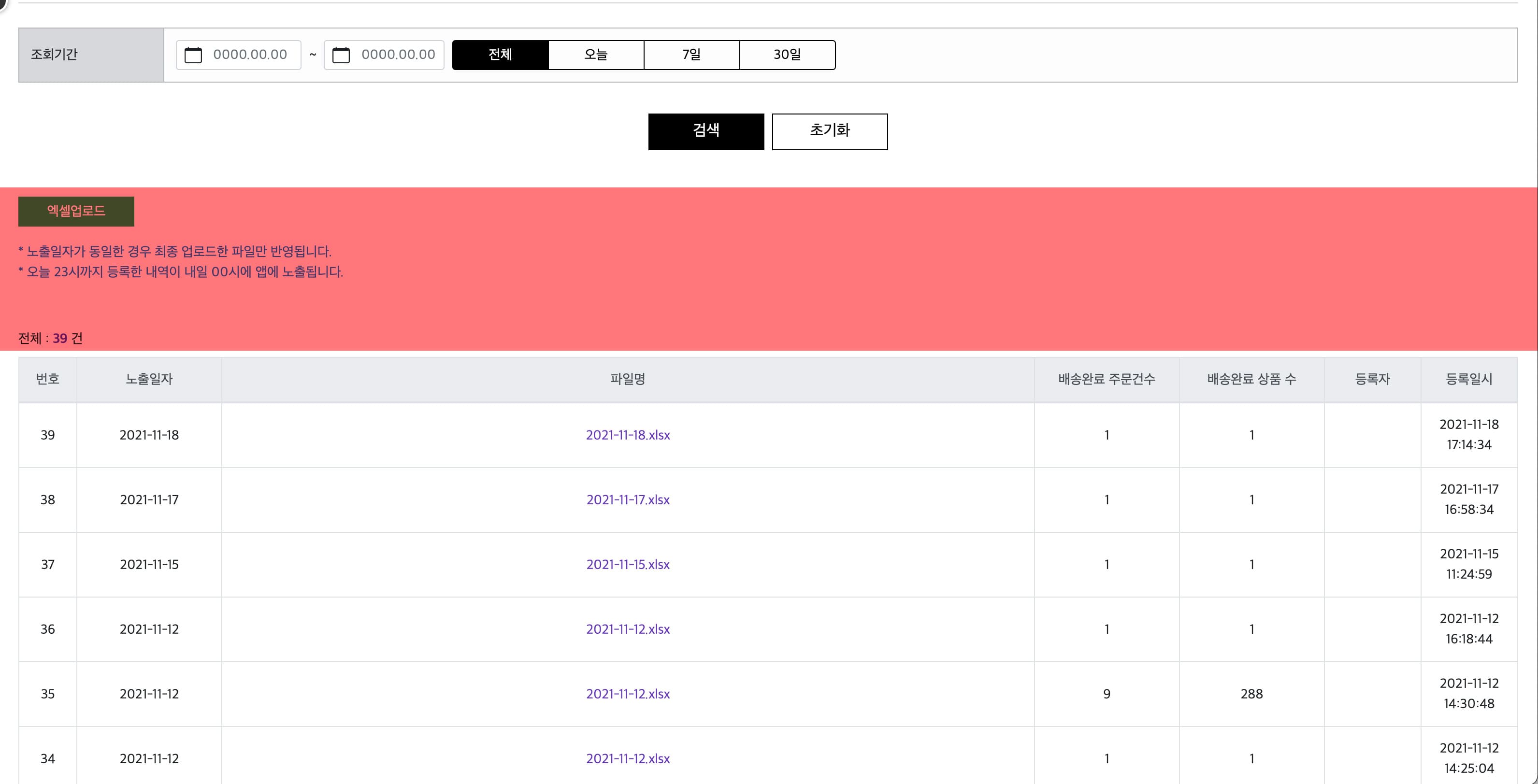
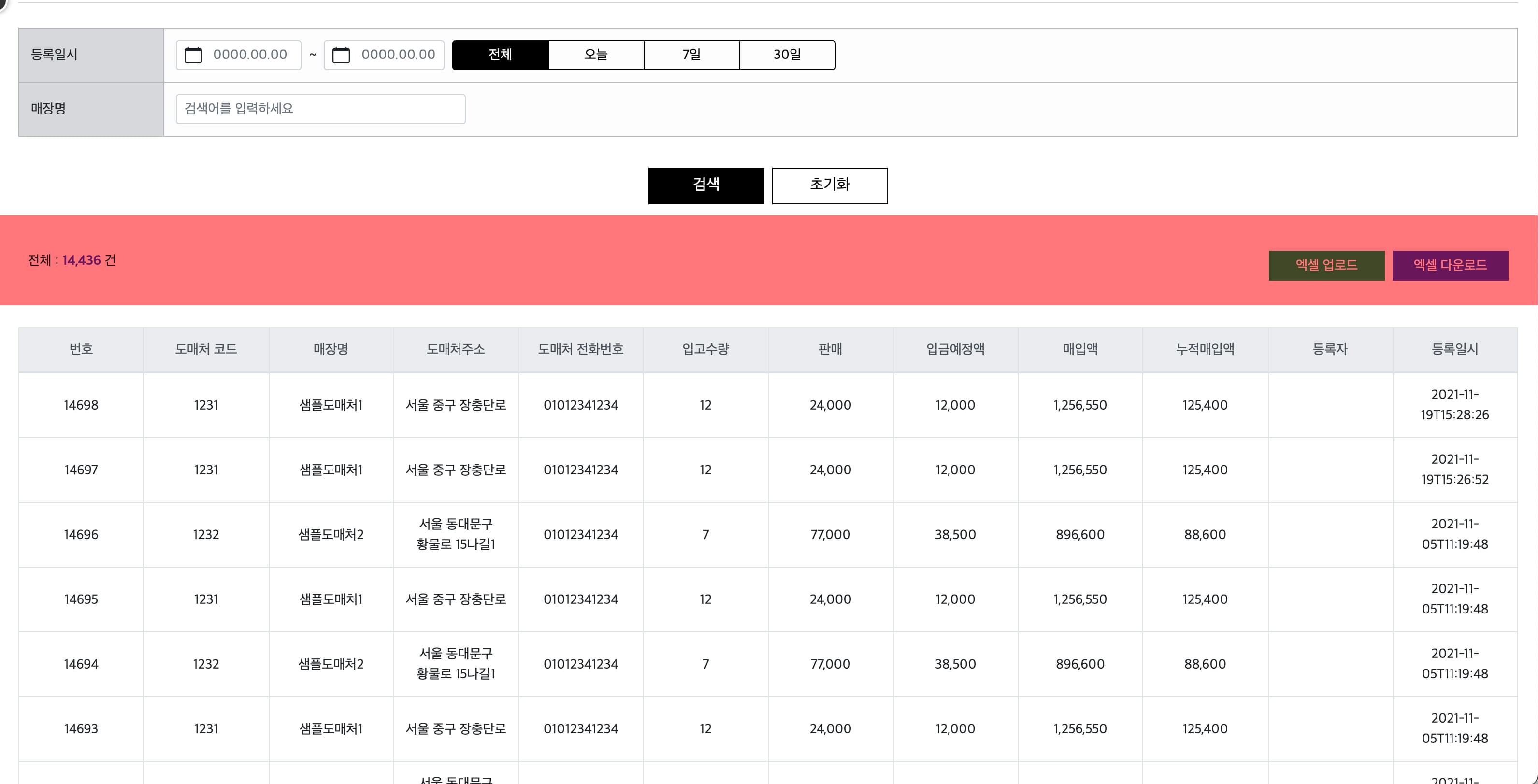
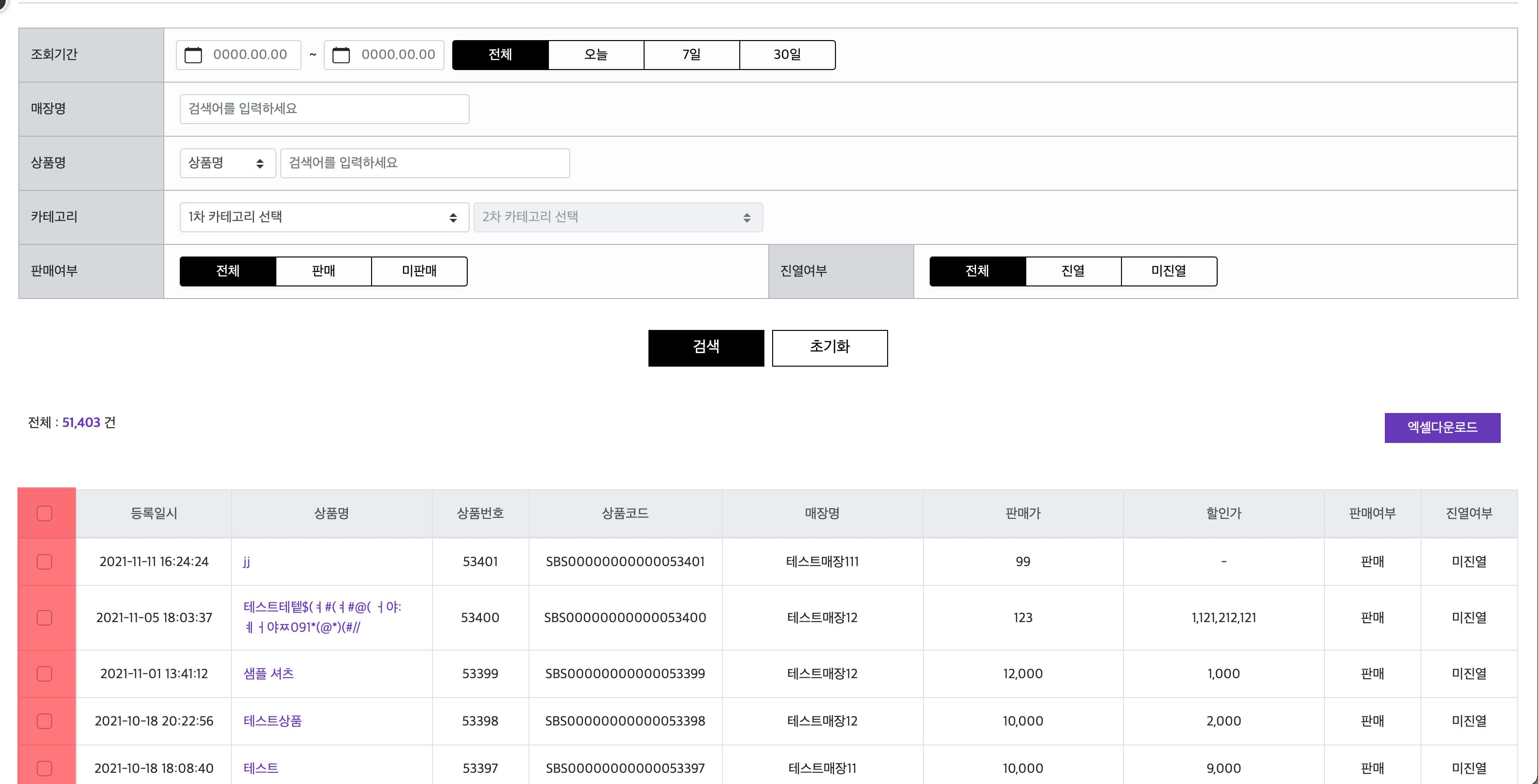
이렇게 UI가 제각각인 상황에서 전체를 아우르는 컴포넌트를 만든다는 것은 쉽지 않아 보였습니다.
2. Bootstrap-vue 자체가 이미 컴포넌트인데, 겹 포장 아닌가?
Bootstrap-vue의 b-table을 예로 들면, 이미 items와 fields를 넘겨주면 테이블이 렌더링됩니다. 이걸 또 감싸서 컴포넌트를 만든다는 건 겹 포장처럼 느껴졌습니다.
<!-- 자식 컴포넌트가 있다라고 가정하면 -->
<template>
  <b-table :items="items" :fields="fields" />
</template>
<script>
export default {
  name: 'ResultTable',
  props: {
    items: { type: Array, default: Array },
    fields: { type: Array, default: Array },
  },
}
</script>

<!-- 부모 컴포넌트 -->
<template>
  <MainContainer>
    <ResultTable :items="items" :fields="fields" />
    <b-table :items="items" :fields="fields"></b-table>
  </MainContainer>
</template>
부모 컴포넌트에서 ResultTable을 쓰든 b-table을 직접 쓰든 넘기는 props가 동일합니다. 굳이 한 번 더 감쌀 필요가 있을까요?
3. items/fields를 연동해도 커스텀 추가작업은 필연적이다
b-table에 items와 fields를 연동해도 결국 셀 커스텀, 스타일 변경 등 추가 작업이 필요합니다. 컴포넌트로 감싸봤자 커스텀 작업은 피할 수 없었습니다.
4. b-form-input에 type="number"만 붙이면 되지 않나?
숫자 입력이 필요하면 b-form-input에 type="number"만 붙이면 되는데, 왜 별도의 Number Input 컴포넌트를 만들어야 하는지 이해가 되지 않았습니다.
Bootstrap이 우리 프로젝트에 필요한 모든 기능을 다 제공하는 건 아니다
하지만 프로젝트를 진행하면서 생각이 바뀌기 시작했습니다. 화면을 개발하다 보니 중복되는 기능과 레이아웃이 눈에 들어오기 시작한 것입니다.
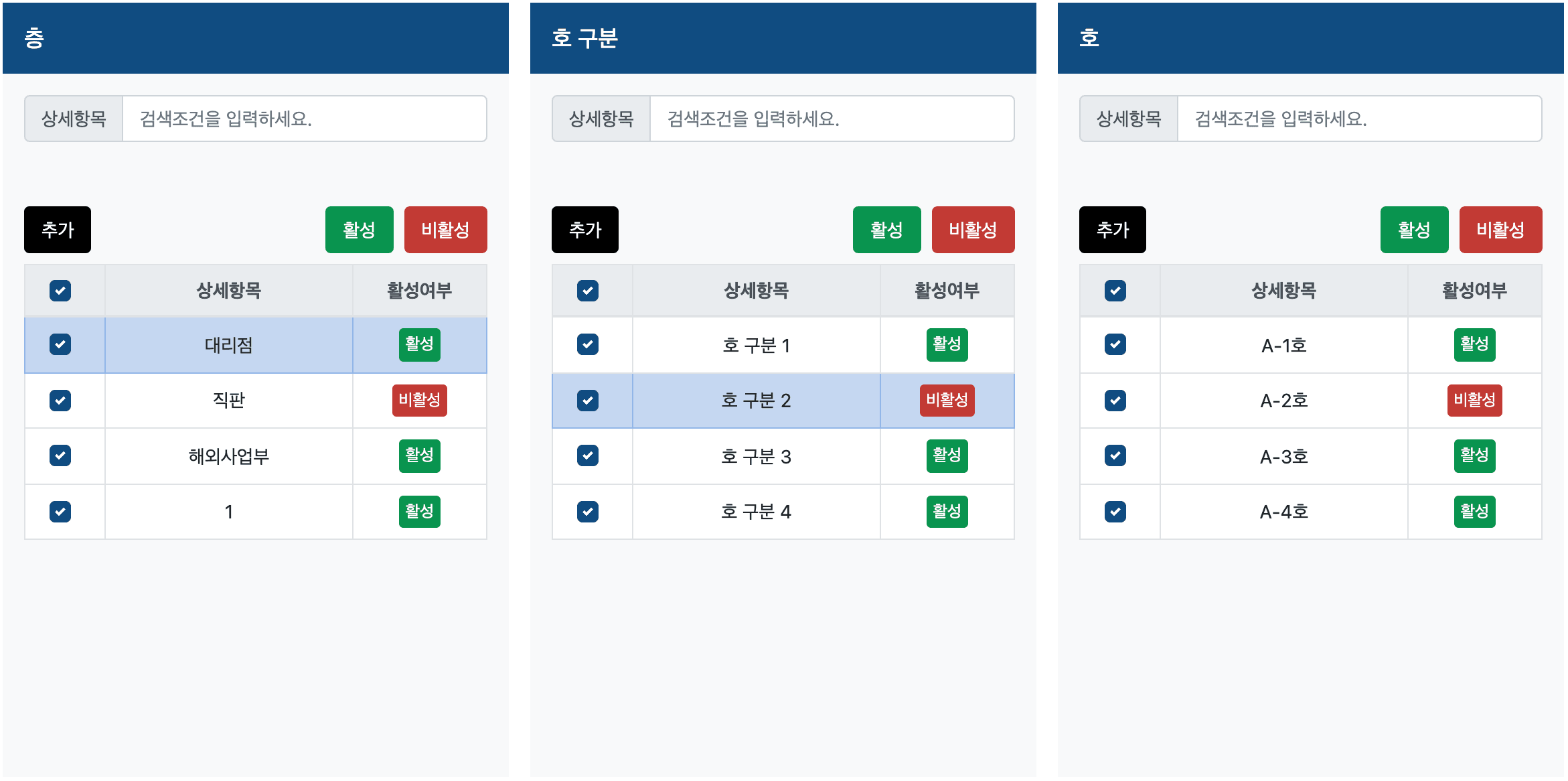
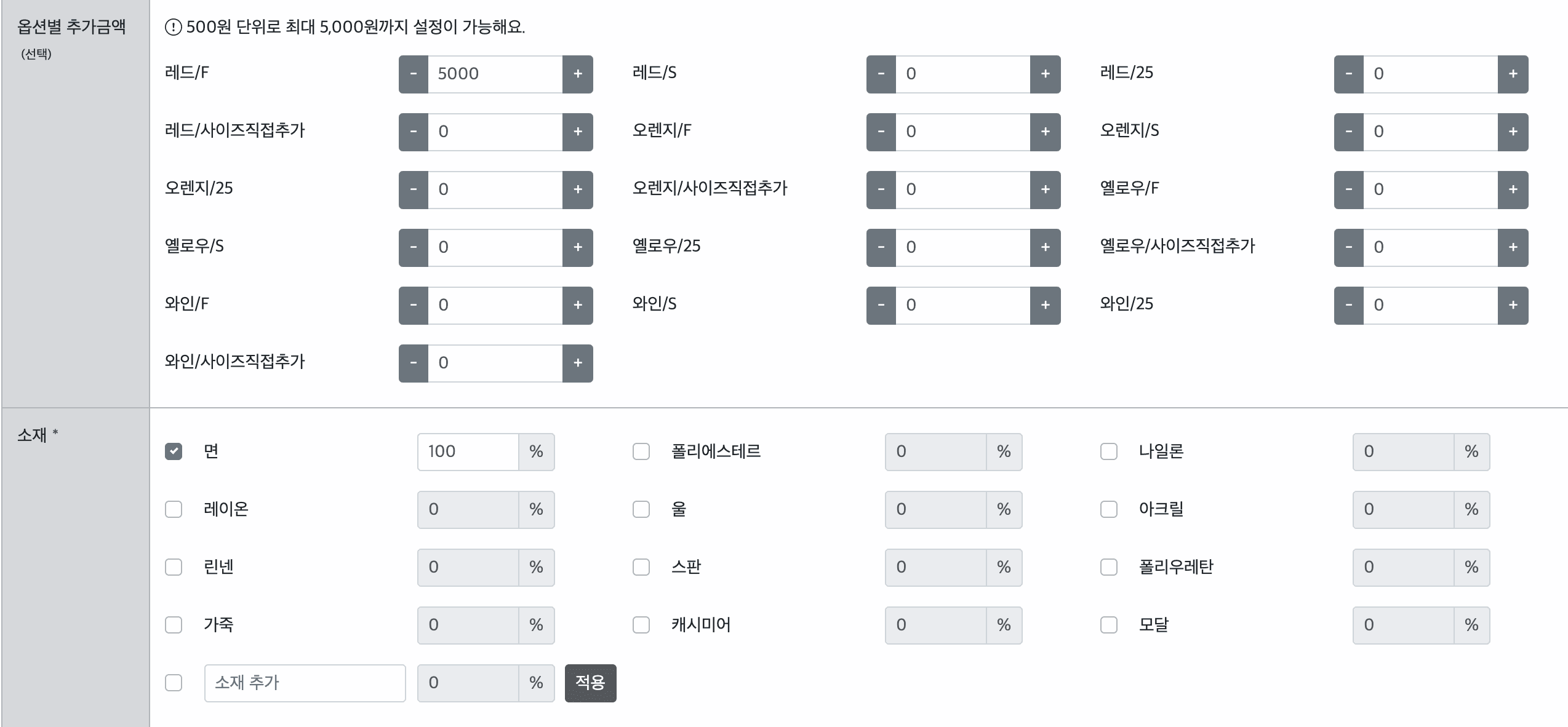
특히 옵션별 추가금액을 입력하는 영역에서는 증가/차감 버튼과 min/max 범위 제한이 필요했고, 이 로직을 인라인으로 처리하다 보니 다음과 같은 코드가 탄생했습니다.
<!-- 옵션별 추가금액 input 영역 -->
<b-input-group size="sm">
  <b-input-group-prepend>
    <b-button variant="secondary" size="sm"
      @click="item.optionPrice = Number(item.optionPrice) - 500 < 0 ? 0 : Number(item.optionPrice) - 500">
      <span class="sr-only">차감</span>-
    </b-button>
  </b-input-group-prepend>
  <b-form-input v-model.trim="item.optionPrice" type="number" :step="500" :min="0" :max="5000"
    placeholder="0" size="sm"
    @blur="item.optionPrice > 5000 ? (item.optionPrice = 5000) : item.optionPrice">
  </b-form-input>
  <b-input-group-append>
    <b-button variant="secondary" size="sm"
      @click="item.optionPrice = Number(item.optionPrice) + 500 > 5000 ? 5000 : Number(item.optionPrice) + 500">
      <span class="sr-only">증가</span>+
    </b-button>
  </b-input-group-append>
</b-input-group>
네, 이건 정신 나간 코드입니다. 인라인 이벤트 핸들러에 삼항 연산자까지 들어가 있고, 이런 코드가 여러 화면에서 반복되고 있었습니다.

바로 이 순간 깨달았습니다. 컴포넌트를 미리 만들어두지 않으면 이런 코드가 프로젝트 곳곳에 퍼지게 된다는 것을요. Bootstrap-vue가 기본적인 UI 컴포넌트를 제공하는 건 맞지만, 우리 프로젝트에 필요한 모든 기능을 다 제공하는 건 아니었습니다.
그래서 이 프로젝트에선 어떤 걸 컴포넌트로 만들면 좋을까
프로젝트 전체를 살펴보고 컴포넌트로 만들면 좋겠다고 생각한 목록은 다음과 같습니다.
- Header / Footer / GNB / LNB - 공통 레이아웃
- 공통 컴포넌트 - 검색 영역, 버튼 그룹 등
- Number Input - 숫자 입력 전용 컴포넌트
- Confirm / Alert 모달 - 공통 확인/알림 모달
- Textarea 글자수 제한 - 글자수 카운트 및 제한 기능
- 검색결과 영역 - 테이블 + 페이지네이션
- 연도/월 검색 - 날짜 검색 컴포넌트
이 중에서 3번 Number Input의 제작 과정을 집중적으로 공유하겠습니다.
내가 편리할 것이라 생각했지만 남들에게도 편리한 건 아니다
처음 Number Input을 만들 때의 목표는 만능 통합형 Input 컴포넌트였습니다. 숫자 입력뿐만 아니라 일반 텍스트 입력까지 하나의 컴포넌트로 처리하려 했습니다. 그 결과 props가 무려 22개나 되는 괴물 컴포넌트가 탄생했습니다.
<template>
  <b-input-group :size="size" :prepend="prepend" :append="append">
    <b-input-group-prepend v-if="useMinus">
      <b-button :variant="variant" :size="size" @click="minus">
        <span class="sr-only">차감</span>-
      </b-button>
    </b-input-group-prepend>
    <b-form-input
      v-model.trim="inputValue"
      :type="type"
      :placeholder="placeholder"
      :size="size"
      :step="step"
      :min="min"
      :max="max"
      :disabled="disabled"
      :readonly="readonly"
      :formatter="formatter"
      :state="state"
      @input="onInput"
      @blur="onBlur"
    />
    <b-input-group-append v-if="usePlus">
      <b-button :variant="variant" :size="size" @click="plus">
        <span class="sr-only">증가</span>+
      </b-button>
    </b-input-group-append>
  </b-input-group>
</template>
<script>
export default {
  name: 'CustomInput',
  props: {
    value: { type: [String, Number], default: '' },
    type: { type: String, default: 'text' },
    placeholder: { type: String, default: '' },
    size: { type: String, default: 'md' },
    step: { type: Number, default: 1 },
    min: { type: Number, default: 0 },
    max: { type: Number, default: Infinity },
    disabled: { type: Boolean, default: false },
    readonly: { type: Boolean, default: false },
    formatter: { type: Function, default: null },
    state: { type: Boolean, default: null },
    prepend: { type: String, default: '' },
    append: { type: String, default: '' },
    useMinus: { type: Boolean, default: false },
    usePlus: { type: Boolean, default: false },
    variant: { type: String, default: 'secondary' },
    useComma: { type: Boolean, default: false },
    maxLength: { type: Number, default: Infinity },
    allowFirstZero: { type: Boolean, default: false },
    useFloor: { type: Boolean, default: false },
    debounceTime: { type: Number, default: 0 },
    trimWhitespace: { type: Boolean, default: true },
  },
  // ... 이하 생략
}
</script>
이 코드를 가지고 첫 번째 코드리뷰에 들어갔습니다. 결과는 시원하게 말아먹었습니다.

리뷰에서 받은 피드백의 핵심은 이랬습니다.
- Number Input과 일반 Input은 목적이 다르다. 하나의 컴포넌트에 억지로 합치지 마라.
- 스타일 관련 props는 제외하라.
size,variant같은 건 사용하는 쪽에서 결정할 문제다. - 순수하게 Input의 기능에만 집중하라.
방향을 완전히 전환했습니다. Number Input과 일반 Input을 분리하고, 스타일 관련 props를 제거하고, 순수하게 숫자 입력의 기능에만 집중하기로 했습니다.
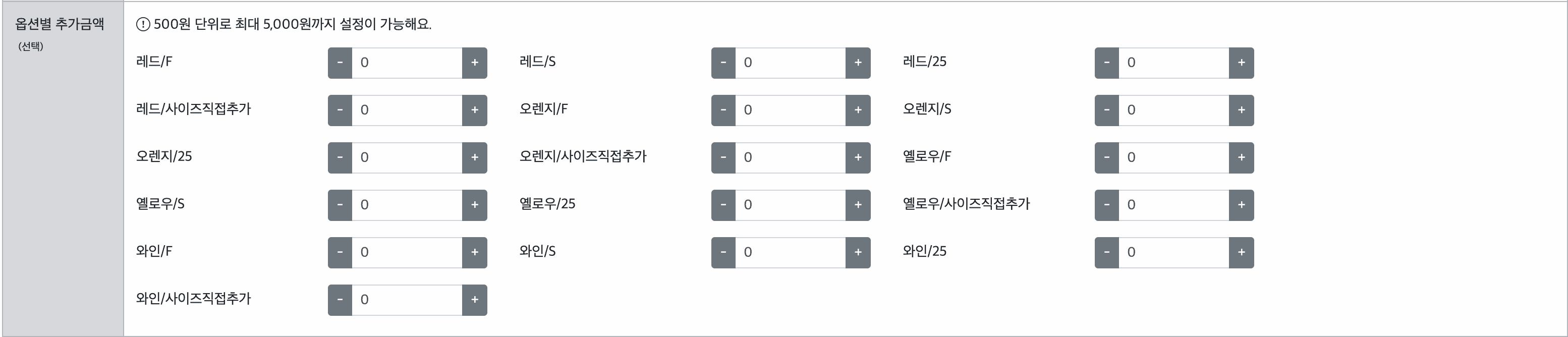
어드민 내에서 Number Input이 사용되는 곳을 분석해보니 크게 두 가지 유형이었습니다.
단위 없이 숫자만 입력하는 경우 - 전화번호, 계좌번호 등

단위 표기가 필요한 경우 - 금액(원), 수량(개) 등
목적과 방향성이 명확해졌다면, 다시 한번 만들어보자
Number Input을 만들면서 가장 먼저 고민한 것은 input type="number"를 사용할 것인가였습니다. type="number"를 사용하면 몇 가지 이슈가 있었습니다.
- 자동 화살표 UI - 브라우저가 자동으로 증가/감소 화살표를 표시하는데, 디자인과 맞지 않음
- Firefox에서 한글/영어 입력 가능 -
type="number"임에도 Firefox에서는 한글이나 영어가 입력됨 - 앞자리 0 자동 삭제 -
type="number"는 앞자리 0을 자동으로 삭제함 (예:010->10)
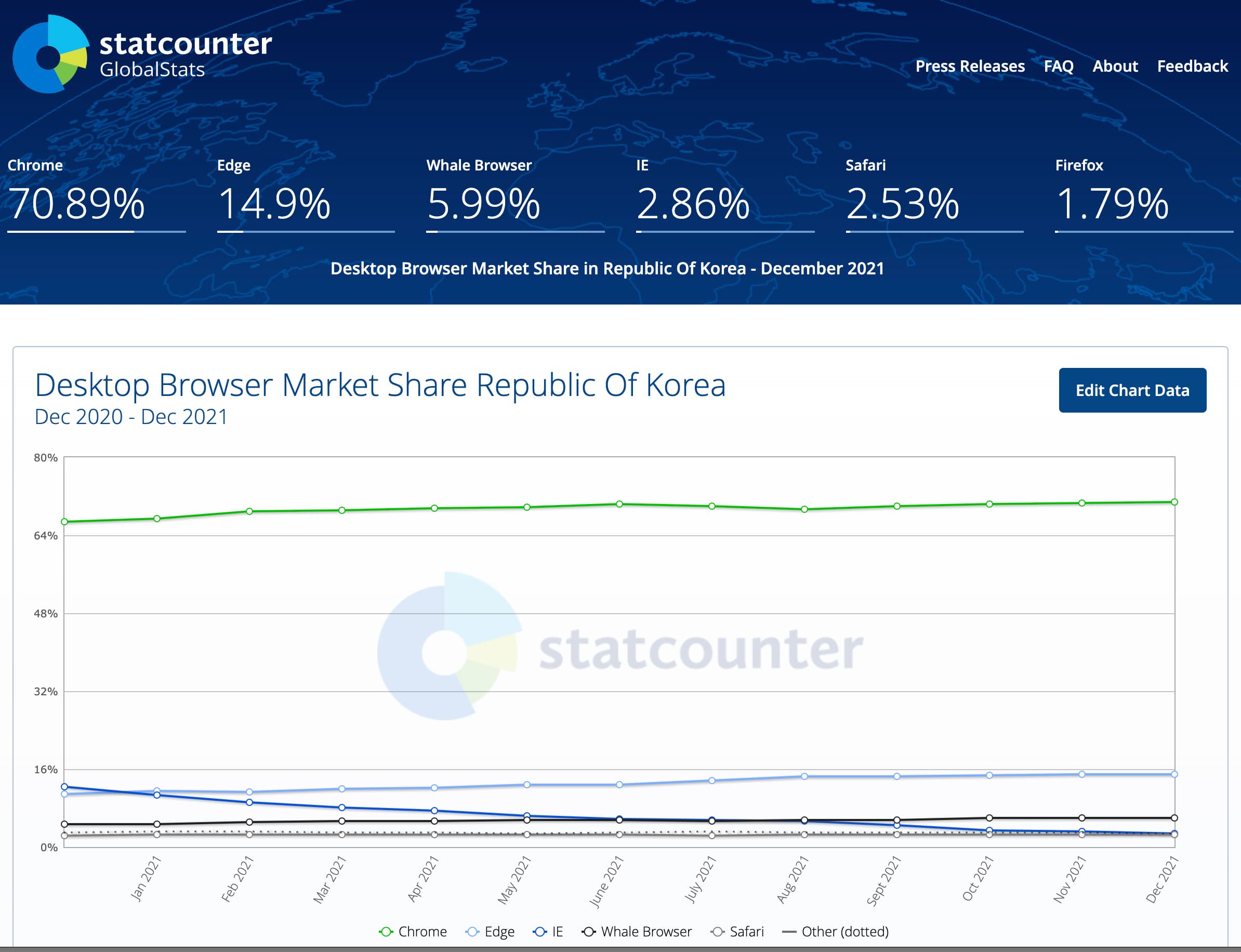
Firefox 점유율이 2% 미만이었기 때문에 type="number"를 채택하되, 화살표 UI는 CSS로 숨기고, 앞자리 0 이슈는 별도로 처리하기로 했습니다.
리팩토링된 NumberInput 컴포넌트는 다음과 같습니다.
<template>
  <b-form-input
    v-model.trim="inputValue"
    type="number"
    :placeholder="placeholder"
    :disabled="disabled"
    :readonly="readonly"
    :step="step"
    :min="min"
    :max="max"
    @input="handleInput"
    @blur="blurInput"
  />
</template>
<script>
export default {
  name: 'NumberInput',
  props: {
    value: { type: [String, Number], default: '' },
    placeholder: { type: String, default: '0' },
    disabled: { type: Boolean, default: false },
    readonly: { type: Boolean, default: false },
    step: { type: Number, default: 1 },
    min: { type: Number, default: 0 },
    max: { type: Number, default: Infinity },
  },
  data() {
    return {
      inputValue: this.value,
    }
  },
  watch: {
    value(newVal) {
      this.inputValue = newVal
    },
  },
  methods: {
    handleInput(value) {
      const numValue = Number(value)
      if (numValue < this.min) {
        this.inputValue = this.min
      } else if (numValue > this.max) {
        this.inputValue = this.max
      }
      this.$emit('input', this.inputValue)
    },
    blurInput() {
      this.calculateValue(0)
    },
    calculateValue(defaultValue) {
      if (this.inputValue === '' || this.inputValue === null) {
        this.inputValue = defaultValue
      }
      this.$emit('input', this.inputValue)
    },
  },
}
</script>
props가 22개에서 7개로 줄었습니다. 훨씬 깔끔해졌죠.
좋은 컴포넌트는 결국 반복적인 피드백을 통해 만들어진다
리팩토링한 코드로 다시 코드리뷰를 받았습니다. 이번에는 더 구체적인 피드백을 받을 수 있었습니다.
피드백 1: method와 computed가 직관적이지 않다
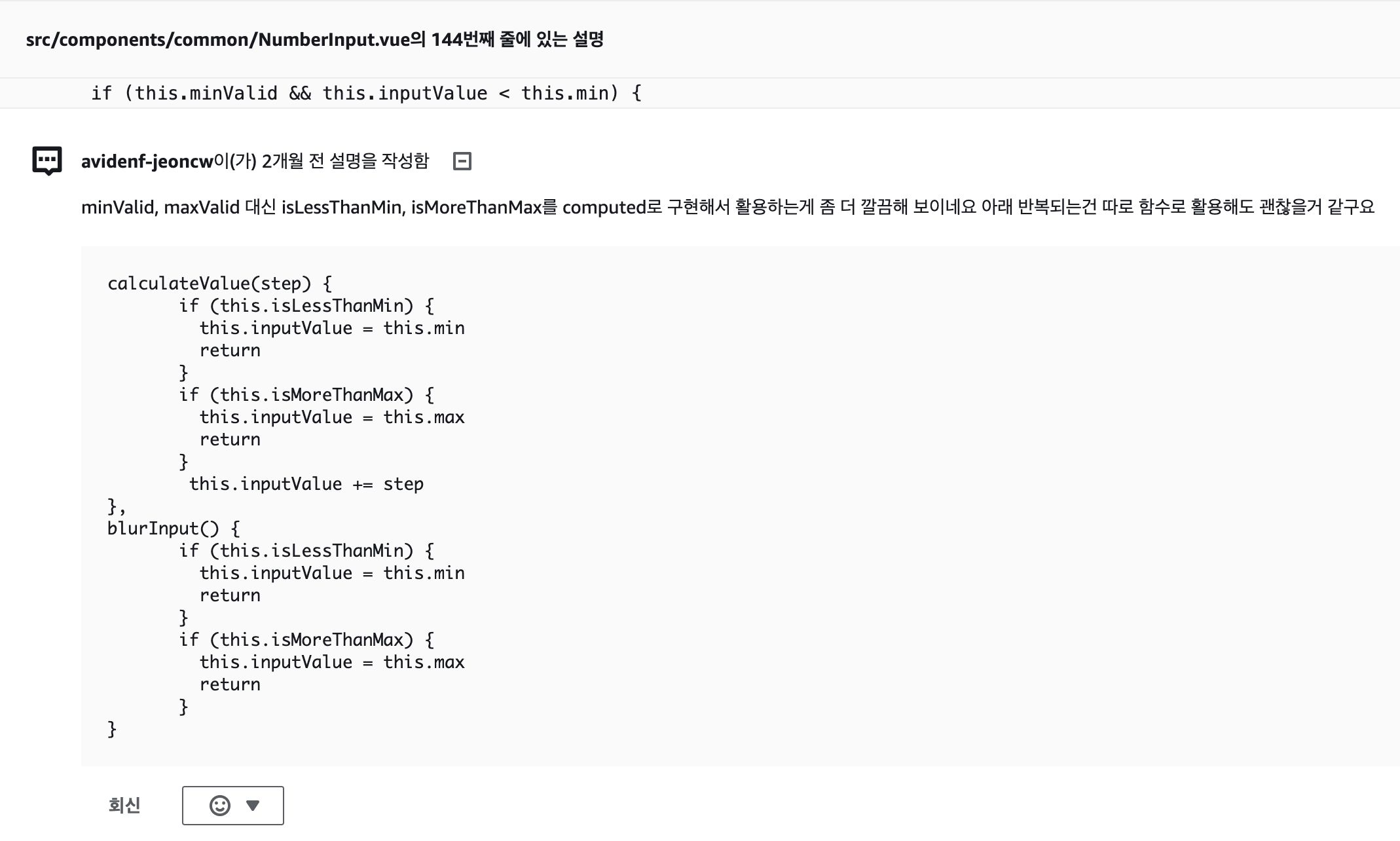
메서드명이나 computed 속성명만 봐서는 무슨 역할을 하는지 바로 파악하기 어렵다는 피드백이었습니다.
피드백 2: if문 조건이 너무 많다
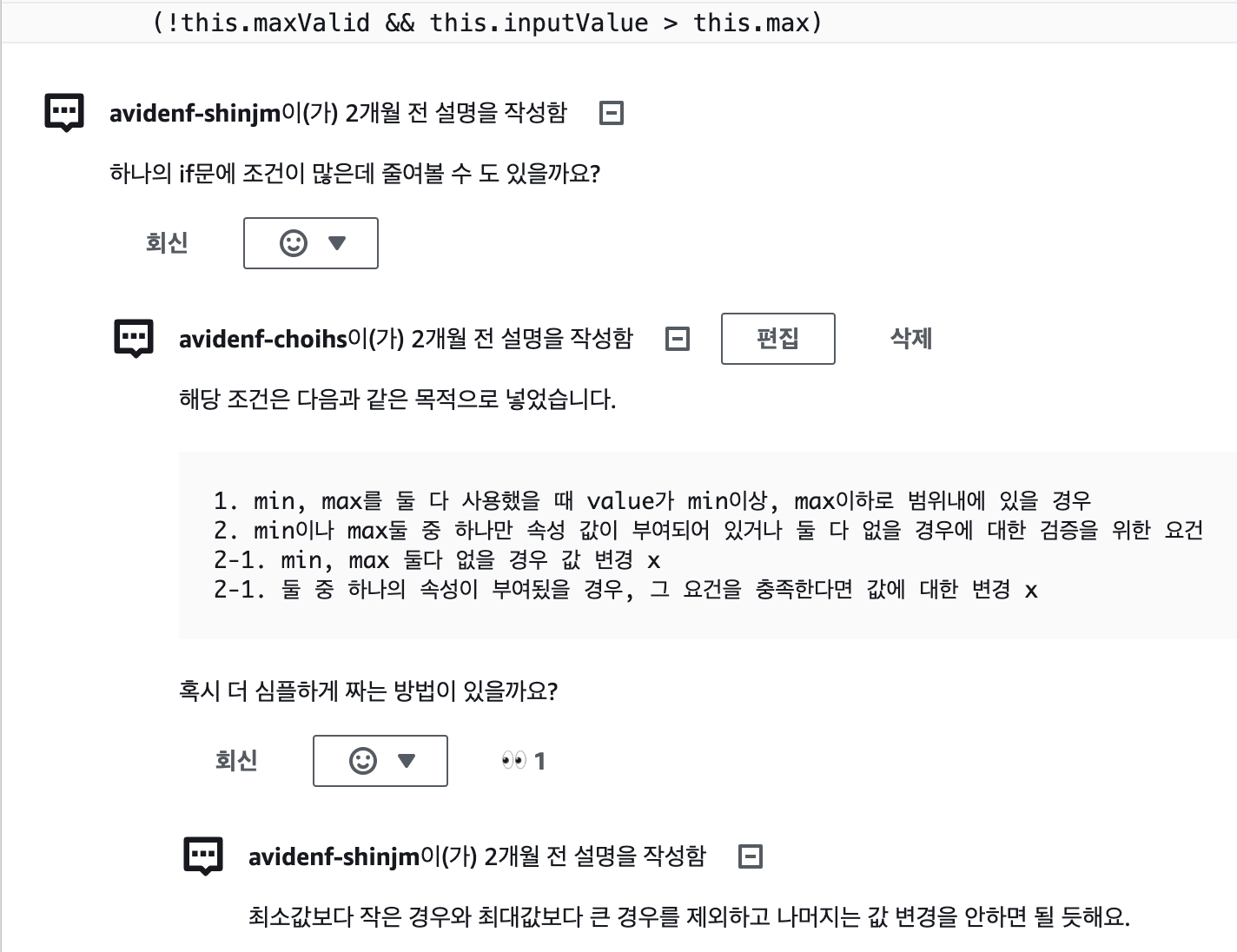
조건문이 중첩되어 있어 가독성이 떨어진다는 지적이었습니다.
이 피드백들을 반영하여 2차 개선을 진행했습니다.
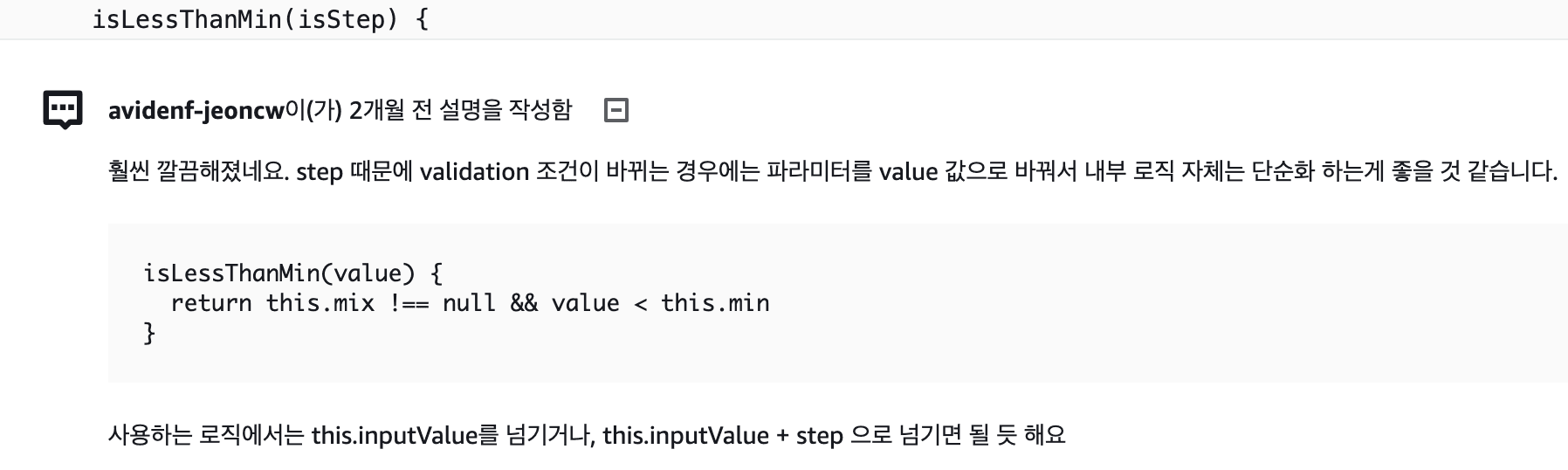
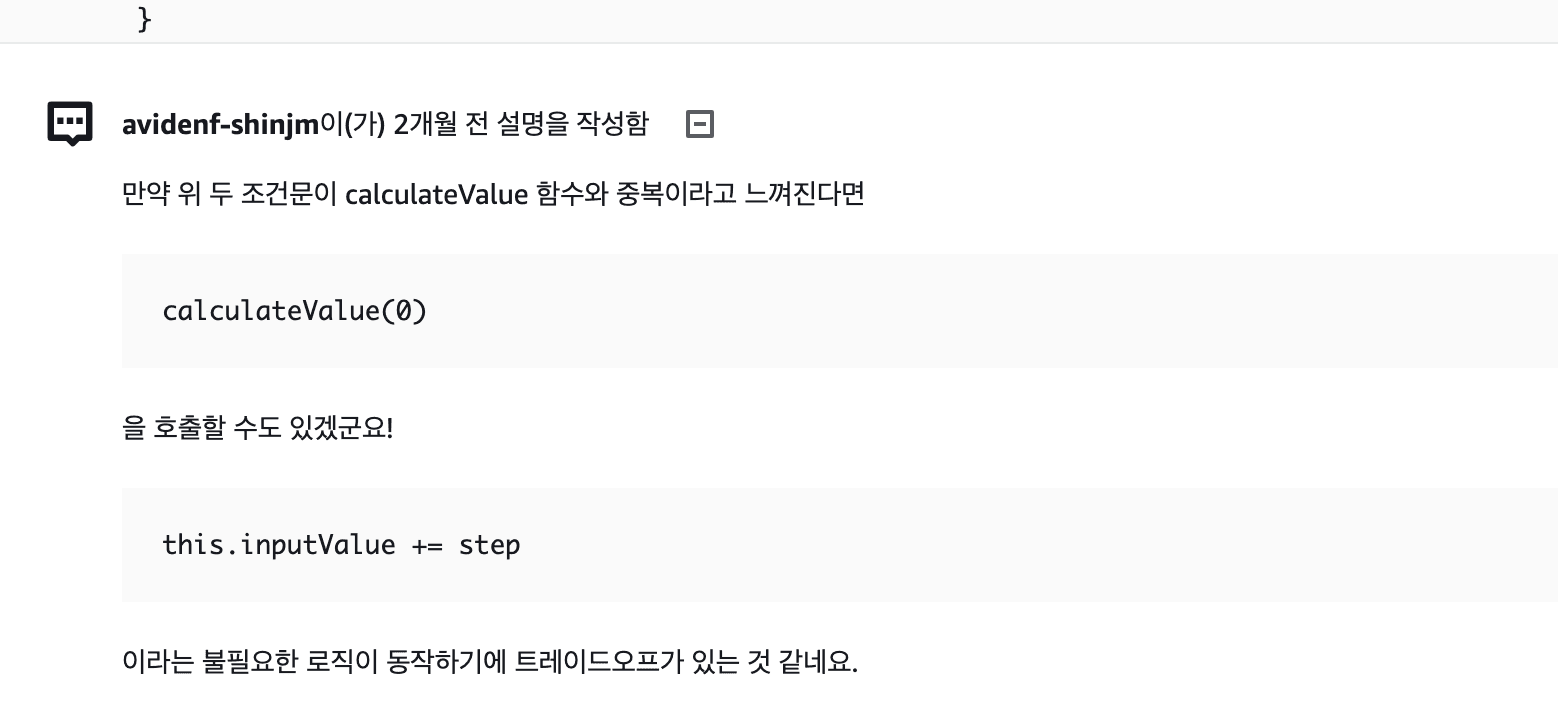
핵심 개선 사항은 isLessThanMin과 isMoreThanMax라는 직관적인 computed 속성을 만들어 조건 분기를 명확하게 한 것입니다.
<template>
  <b-form-input
    v-model.trim="inputValue"
    type="number"
    :placeholder="placeholder"
    :disabled="disabled"
    :readonly="readonly"
    :step="step"
    :min="min"
    :max="max"
    @input="handleInput"
    @blur="blurInput"
  />
</template>
<script>
export default {
  name: 'NumberInput',
  props: {
    value: { type: [String, Number], default: '' },
    placeholder: { type: String, default: '0' },
    disabled: { type: Boolean, default: false },
    readonly: { type: Boolean, default: false },
    step: { type: Number, default: 1 },
    min: { type: Number, default: 0 },
    max: { type: Number, default: Infinity },
  },
  data() {
    return {
      inputValue: this.value,
    }
  },
  computed: {
    isLessThanMin() {
      return Number(this.inputValue) < this.min
    },
    isMoreThanMax() {
      return Number(this.inputValue) > this.max
    },
  },
  watch: {
    value(newVal) {
      this.inputValue = newVal
    },
  },
  methods: {
    handleInput() {
      if (this.isLessThanMin) {
        this.inputValue = this.min
      }
      if (this.isMoreThanMax) {
        this.inputValue = this.max
      }
      this.$emit('input', Number(this.inputValue))
    },
    blurInput() {
      this.calculateValue(0)
    },
    calculateValue(defaultValue) {
      if (this.inputValue === '' || this.inputValue === null) {
        this.inputValue = defaultValue
      }
      this.$emit('input', Number(this.inputValue))
    },
  },
}
</script>isLessThanMin, isMoreThanMax라는 이름만 봐도 어떤 조건인지 바로 이해할 수 있게 되었습니다.
최종적으로 정리된 NumberInput 컴포넌트입니다.
<template>
  <b-form-input
    v-model.trim="inputValue"
    type="number"
    :placeholder="placeholder"
    :disabled="disabled"
    :readonly="readonly"
    :step="step"
    :min="min"
    :max="max"
    @input="handleInput"
    @blur="blurInput"
  />
</template>
<script>
export default {
  name: 'NumberInput',
  props: {
    value: { type: [String, Number], default: '' },
    placeholder: { type: String, default: '0' },
    disabled: { type: Boolean, default: false },
    readonly: { type: Boolean, default: false },
    step: { type: Number, default: 1 },
    min: { type: Number, default: 0 },
    max: { type: Number, default: Infinity },
  },
  data() {
    return {
      inputValue: this.value,
    }
  },
  computed: {
    isLessThanMin() {
      return Number(this.inputValue) < this.min
    },
    isMoreThanMax() {
      return Number(this.inputValue) > this.max
    },
  },
  watch: {
    value(newVal) {
      this.inputValue = newVal
    },
    inputValue(newVal) {
      this.$emit('input', Number(newVal))
    },
  },
  methods: {
    handleInput() {
      if (this.isLessThanMin) {
        this.inputValue = this.min
      }
      if (this.isMoreThanMax) {
        this.inputValue = this.max
      }
    },
    blurInput() {
      this.calculateValue(0)
    },
    calculateValue(defaultValue) {
      if (this.inputValue === '' || this.inputValue === null) {
        this.inputValue = defaultValue
      }
    },
  },
}
</script>
잘 완성된 것 같은 컴포넌트도 직접 사용해봐야 문제를 발견한다
코드리뷰를 통과하고 잘 완성된 것 같았지만, 실제로 사용해보니 문제가 발견되었습니다.
문제 1: type="number"의 앞자리 0 삭제 이슈
전화번호를 입력할 때 010을 입력하면 type="number"가 앞자리 0을 자동으로 삭제하여 10이 되어버렸습니다.
문제 2: maxlength 미지원
type="number"에서는 HTML의 maxlength 속성이 동작하지 않습니다. 전화번호처럼 글자수 제한이 필요한 경우에 대응할 수 없었습니다.
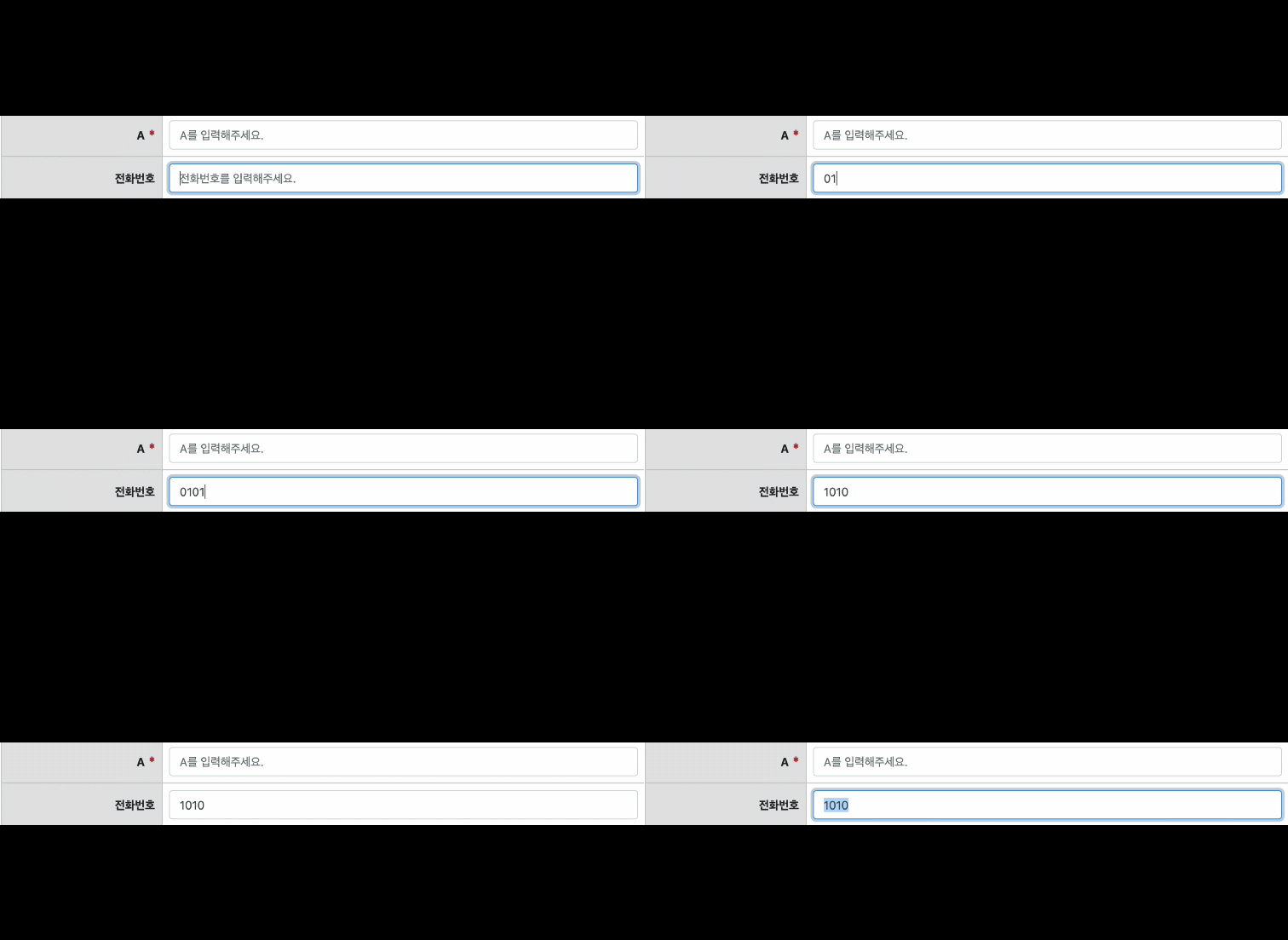
이 문제를 해결하기 위해 allowFirstZero와 maxLength props를 추가했습니다.
<template>
  <b-form-input
    v-model.trim="inputValue"
    :type="allowFirstZero ? 'text' : 'number'"
    :placeholder="placeholder"
    :disabled="disabled"
    :readonly="readonly"
    :step="step"
    :min="min"
    :max="max"
    :maxlength="maxLength"
    @input="handleInput"
    @blur="blurInput"
  />
</template>
<script>
export default {
  name: 'NumberInput',
  props: {
    value: { type: [String, Number], default: '' },
    placeholder: { type: String, default: '0' },
    disabled: { type: Boolean, default: false },
    readonly: { type: Boolean, default: false },
    step: { type: Number, default: 1 },
    min: { type: Number, default: 0 },
    max: { type: Number, default: Infinity },
    allowFirstZero: { type: Boolean, default: false },
    maxLength: { type: Number, default: Infinity },
  },
  data() {
    return {
      inputValue: this.value,
    }
  },
  computed: {
    isLessThanMin() {
      return Number(this.inputValue) < this.min
    },
    isMoreThanMax() {
      return Number(this.inputValue) > this.max
    },
  },
  watch: {
    value(newVal) {
      this.inputValue = newVal
    },
    inputValue(newVal) {
      this.$emit('input', this.allowFirstZero ? newVal : Number(newVal))
    },
  },
  methods: {
    handleInput(value) {
      if (this.allowFirstZero) {
        this.inputValue = value.replace(/[^0-9]/g, '')
        if (this.maxLength !== Infinity) {
          this.inputValue = this.inputValue.slice(0, this.maxLength)
        }
        return
      }
      if (this.isLessThanMin) {
        this.inputValue = this.min
      }
      if (this.isMoreThanMax) {
        this.inputValue = this.max
      }
    },
    blurInput() {
      this.calculateValue(0)
    },
    calculateValue(defaultValue) {
      if (this.inputValue === '' || this.inputValue === null) {
        this.inputValue = defaultValue
      }
    },
  },
}
</script>allowFirstZero가 true일 때는 type="text"로 전환하고, 정규식으로 숫자만 입력되도록 처리했습니다. maxLength로 글자수 제한도 가능해졌습니다.
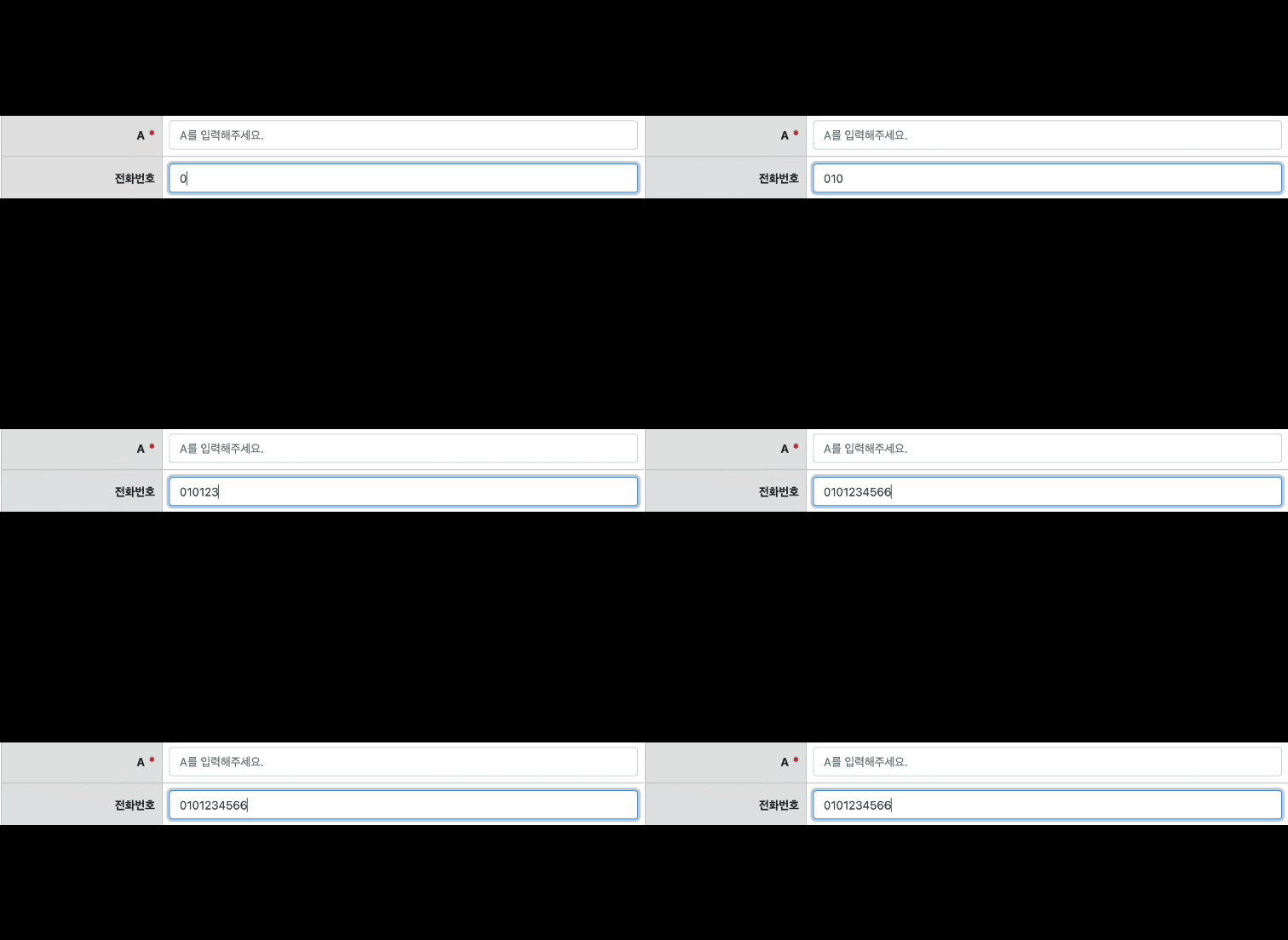
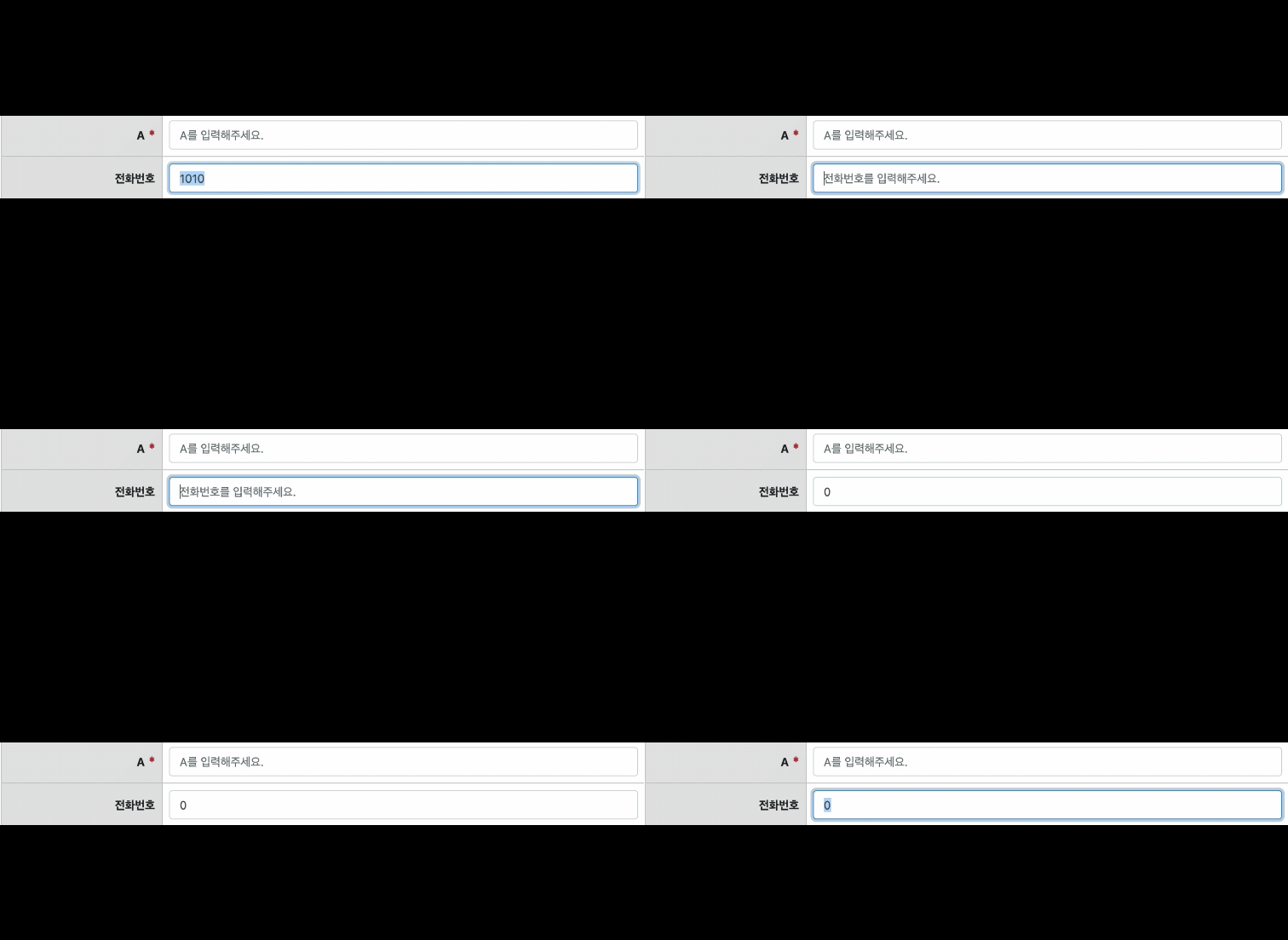
하지만 또 하나의 문제가 발견되었습니다. allowFirstZero가 true인 상태에서 blur 시 빈 값에 0이 자동으로 채워지는 현상이었습니다. 전화번호 Input에서 아무것도 입력하지 않고 blur하면 0이 들어가버리는 것이죠.
이 문제는 blurInput 메서드에서 allowFirstZero이거나 값이 비어있을 때 early return 처리로 해결했습니다.
blurInput() {
  if (this.allowFirstZero || !this.inputValue) {
    return
  }
  this.calculateValue(0)
},
Conclusion
이번 프로젝트를 통해 배운 점을 정리하면 다음과 같습니다.
- 컴포넌트는 지속적인 사용과 개선이 필요합니다. 한 번 만들어서 끝나는 것이 아니라, 실제로 사용하면서 발견되는 문제를 꾸준히 개선해야 합니다.
- 레이아웃뿐 아니라 기능 관점의 컴포넌트 설계도 중요합니다. Bootstrap-vue가 UI를 제공하지만, 프로젝트에 필요한 비즈니스 로직이 포함된 기능 컴포넌트는 직접 만들어야 합니다.
- 좋은 컴포넌트는 여러 사람의 관심과 반복적인 피드백으로 만들어집니다. 혼자 만드는 컴포넌트보다 팀원들의 리뷰와 피드백을 거친 컴포넌트가 훨씬 좋은 결과물을 만들어냅니다.
함께 리뷰하고 피드백 주신 동료들께 감사드립니다. 덕분에 더 나은 컴포넌트를 만들 수 있었습니다.
원문은 회사 공식 기술 블로그에 발행되었으나 현재 서비스 종료되어 접근 불가합니다.